 Ultimate Clock
Choose how to start
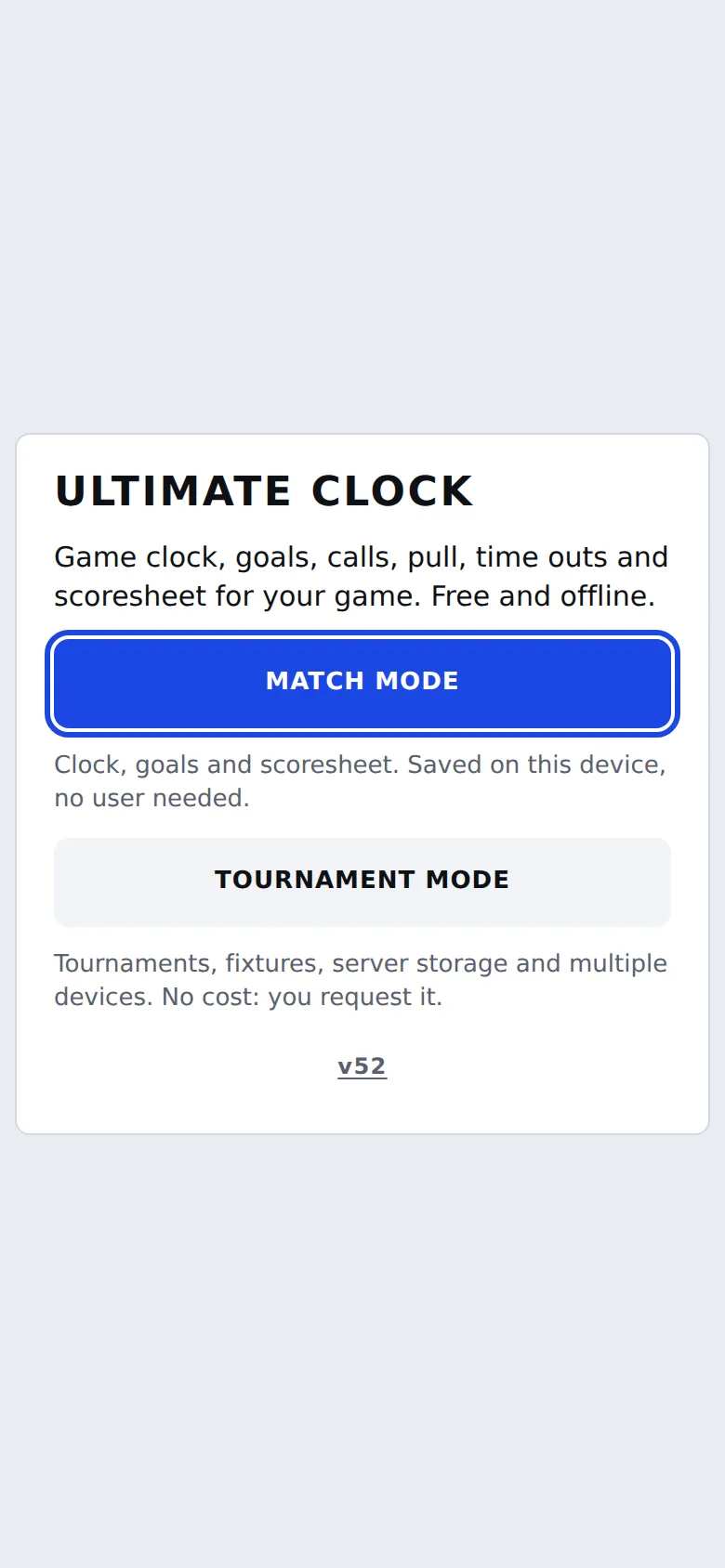
When you open the app you pick Match Mode or Tournament Mode. For a single game, tap Match Mode: no user needed.
- You can switch modes any time from the menu.
- Not sure which one? Start with Match Mode.
1 of 10
Game clock, goals, calls, pull, time outs and scoresheet for Ultimate Frisbee on a single screen. Running a tournament? Fixtures, standings and a live link too.
Pick one when you open the app and switch any time from the menu.
For a single game, a friendly or a practice. Open the app and start.
For a tournament or league with several teams. You request it with a form and we send you a username.
Every feature at a glance. Then the guide walks you through it step by step.
The game clock, halftime and a ❚❚ button that stops every running clock at once.
When a team scores, the pull countdown starts by itself and shows which team throws. Whistles at 45, 60, 75 and 90 s.
Each team sees how many it has left, and the quota resets in the second half.
Foul, violation, pick, travel, stall, contested goal, injury and spirit timeout, each one explained.
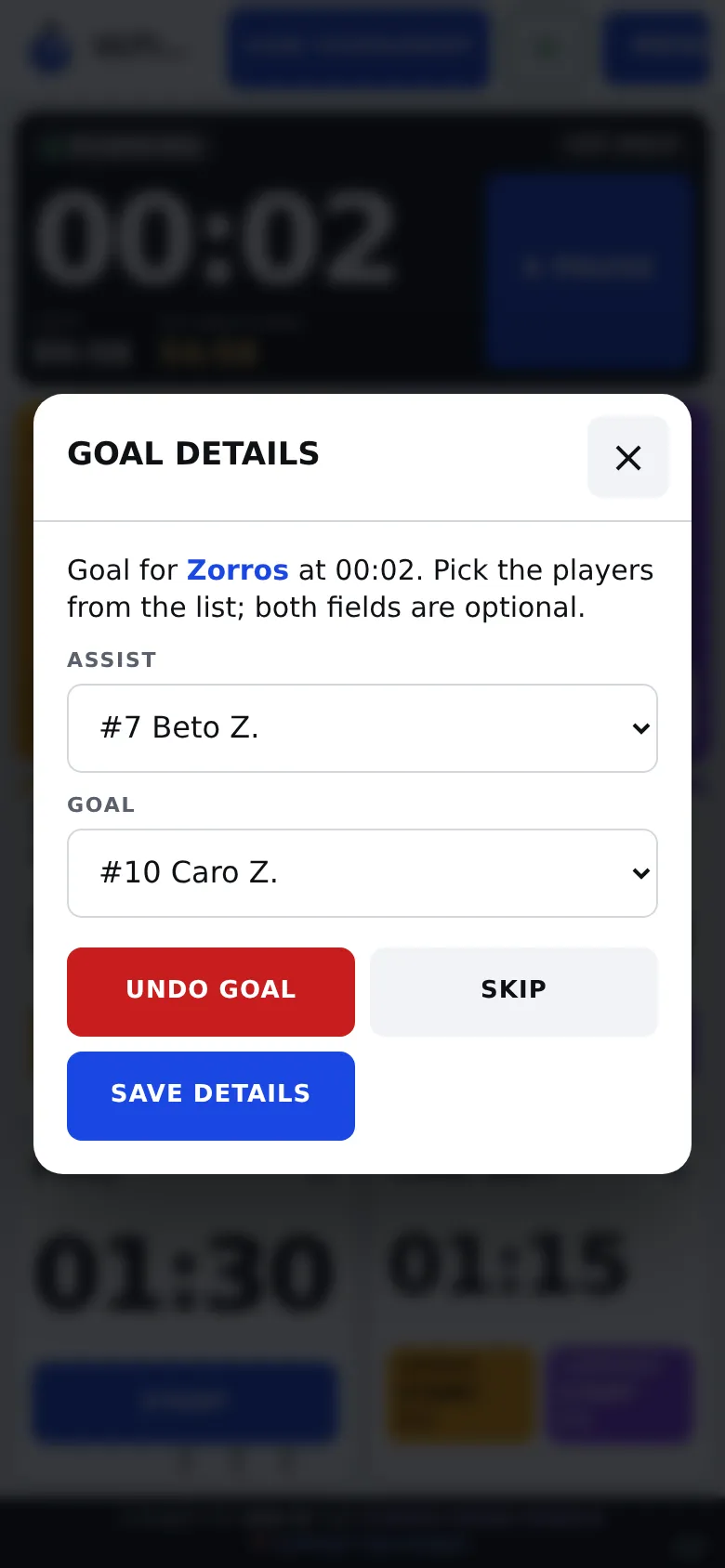
One tap adds the goal; then pick who assisted and who scored. Undo if it was a mistake.
Rule sets with times already loaded, or a profile of your own.
Download the template, fill in teams, players and colors, then import it. Up to 64 teams.
They show on the board, the fixture and the live link.
Round robin or knockout, with a bracket view and a champion.
Table, scorers and assists per player; points and tiebreakers are adjustable.
One table per field with the same user; if a phone fails, pick up from another.
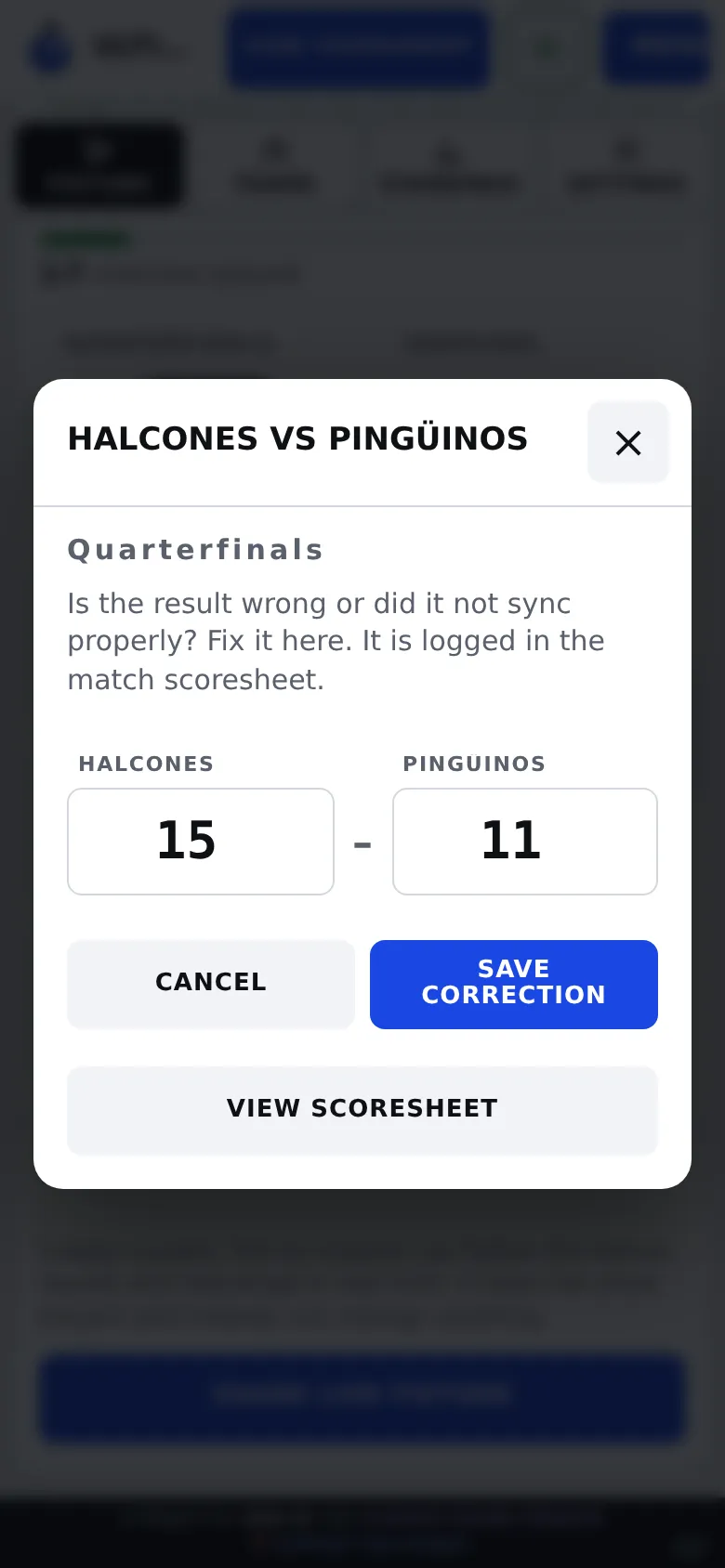
Made a mistake? Correct it and the fixture, the advancing winner and the table update by themselves.
The crowd follows score, clock, play-by-play feed and standings on their phones, nothing to install.
Export the game to print, to open in a spreadsheet or to send to the group chat.
Export and import the tournament between devices.
Loud alarms for every countdown, and the screen stays on during the game.
Light mode for the sun, dark for the night.
Switch the language from the menu.
Add it to your home screen. If the internet drops it keeps recording and syncs when it is back.
Connect Ultimate Clock to your AI assistant and ask for things in your own words. It only sees and touches the tournaments of your account.
It can also add or remove players, upload logos, set the times and delete a tournament (it asks for the exact name). You can disconnect the AI any time from the site.
In your AI assistant (with MCP connectors) add a connector with this address:
https://iona.ar/ultimateclock/api/mcpAn Ultimate Clock page opens for your username and password. The AI never sees your password.
Try one of these requests:
Everything the app does, with real screenshots. As you scroll, the screenshot changes with each step.
When you open the app you pick Match Mode or Tournament Mode. For a single game, tap Match Mode: no user needed.
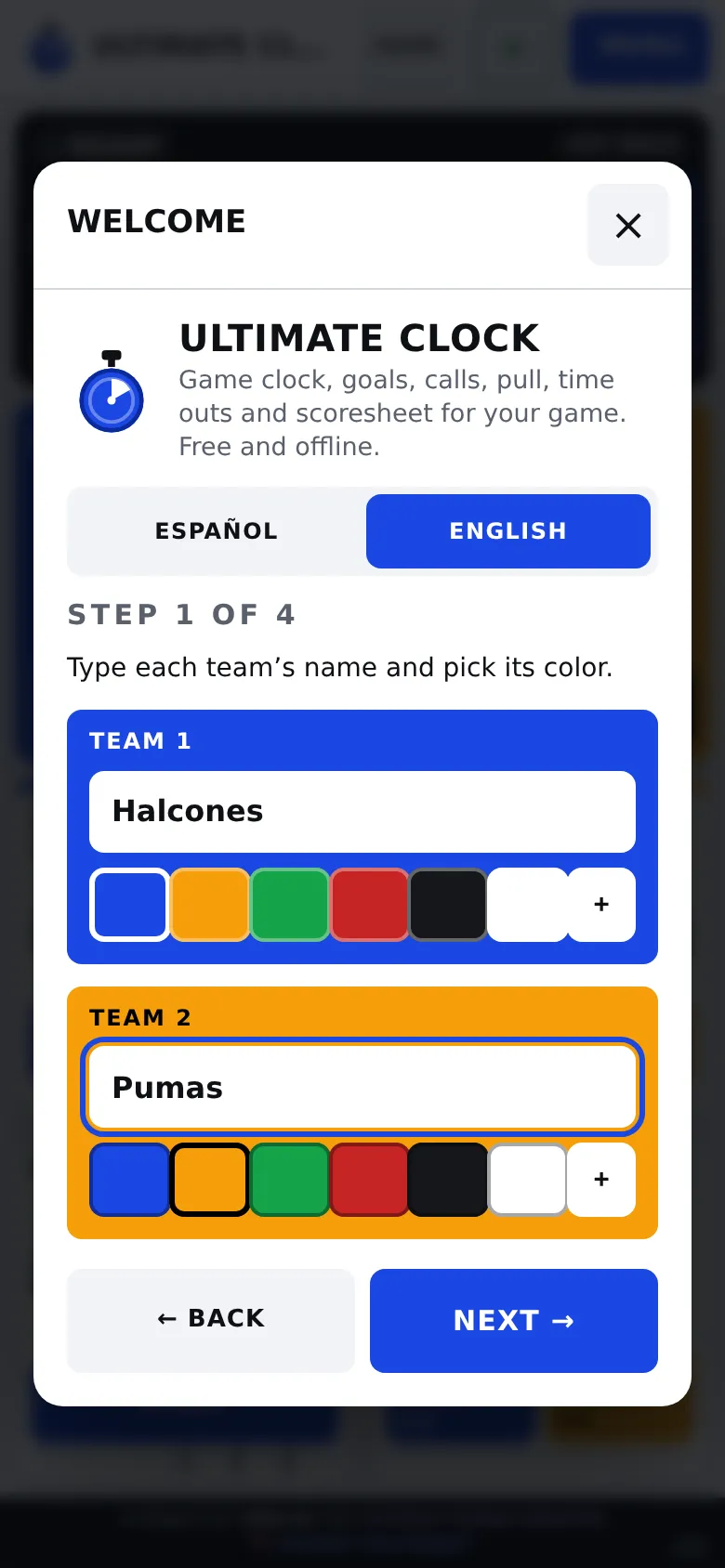
Type each team name and tap a color (the + shows more). Then tap Next.
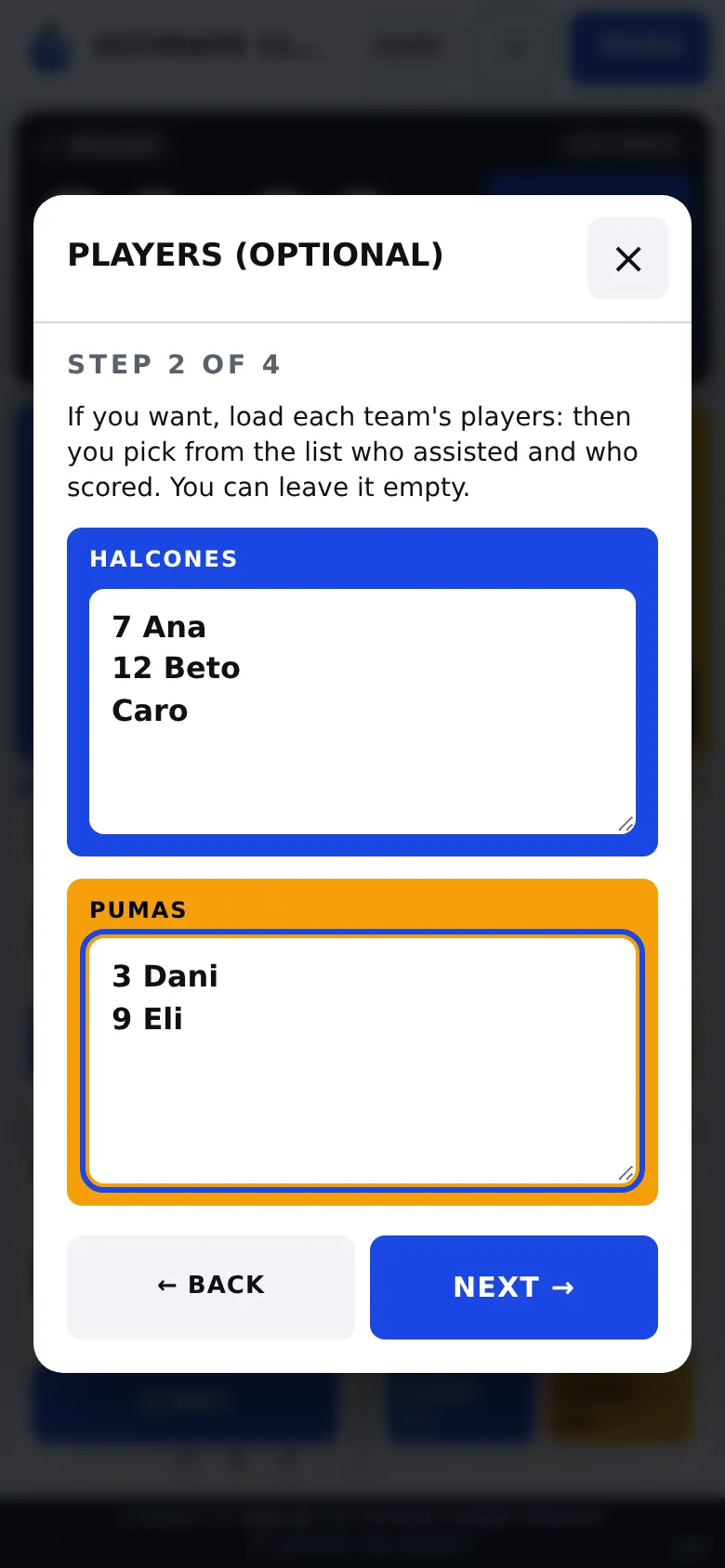
To know who scored each goal, type one player per line. The number goes first and is optional: 7 Ana.
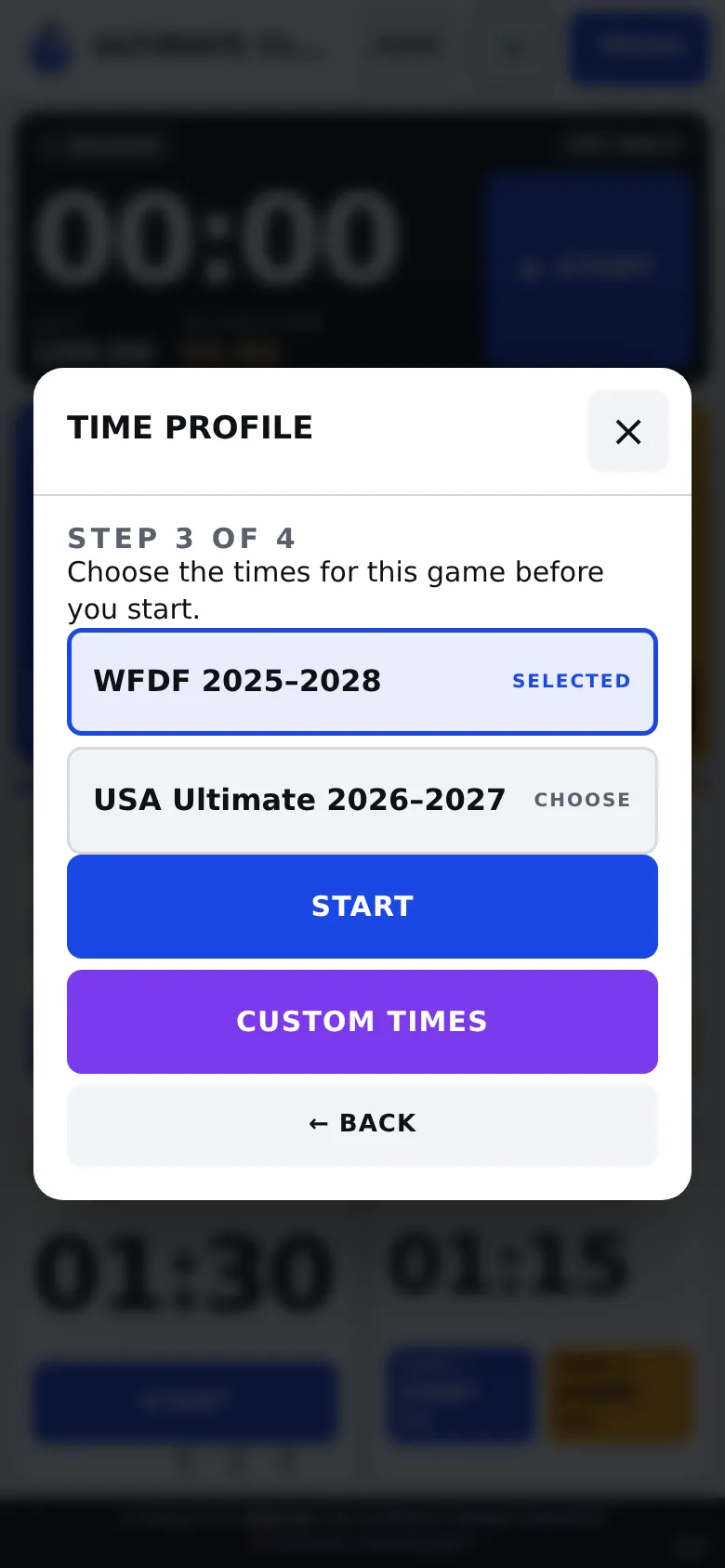
Pick the rule set: WFDF or USA Ultimate, with times and time outs preloaded. If your tournament uses others, tap Custom times and then Start.
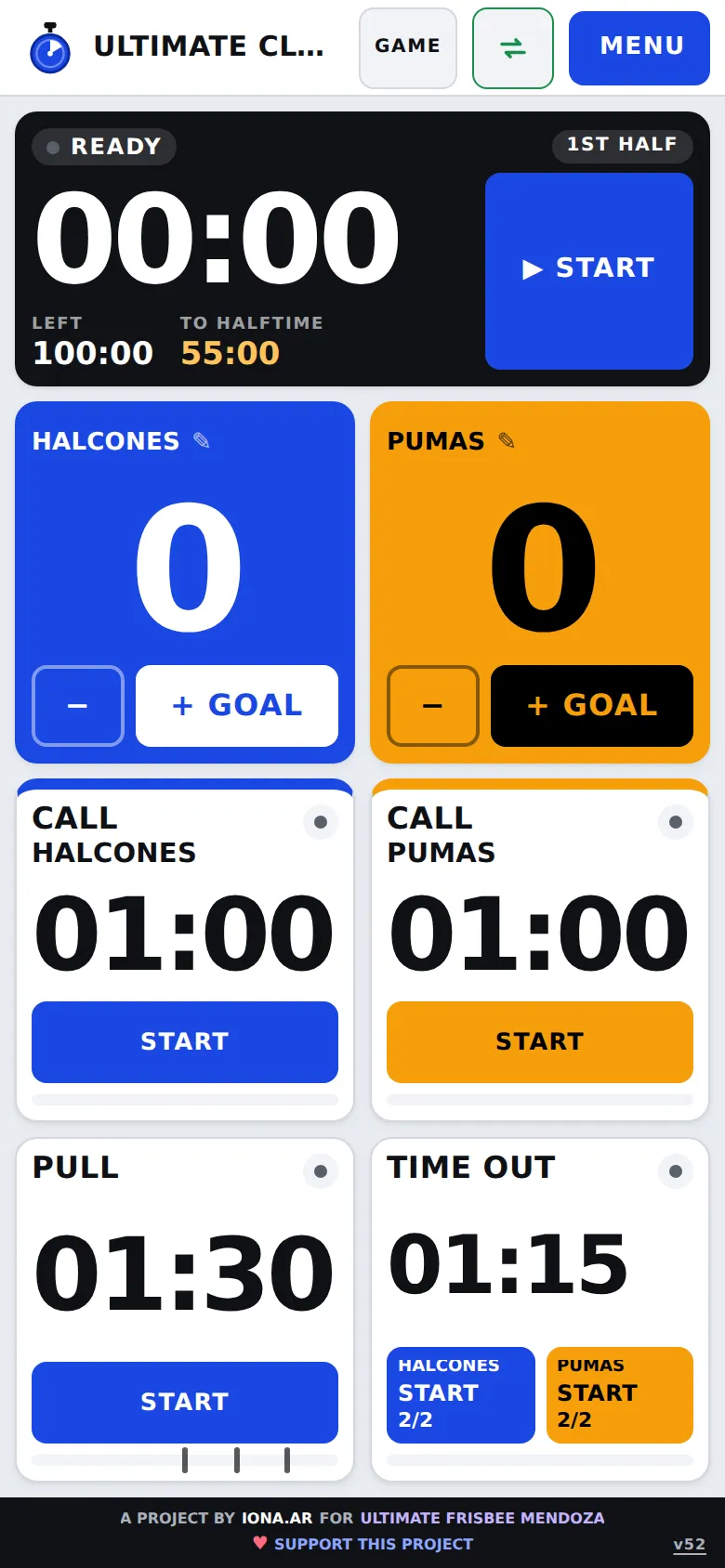
Everything fits on one screen, top to bottom: the game clock, the teams with their score, each team's call timer, the pull and the time outs.
The only clock that pauses is the game clock. Pull, call, time out and halftime run until they finish.
Tap Goal for the team that scored: the goal is added instantly and a detail opens to pick who passed and who scored.
Tap Start on the call timer of the team that made it: the time to resume runs. Pick what it was and tap Record.
The app only records: it does not decide penalties.
When a team scores, that team’s pull starts by itself (you can also start it by hand): whistles sound at 45, 60 and 75 seconds, and the fourth at 90, when time is up.
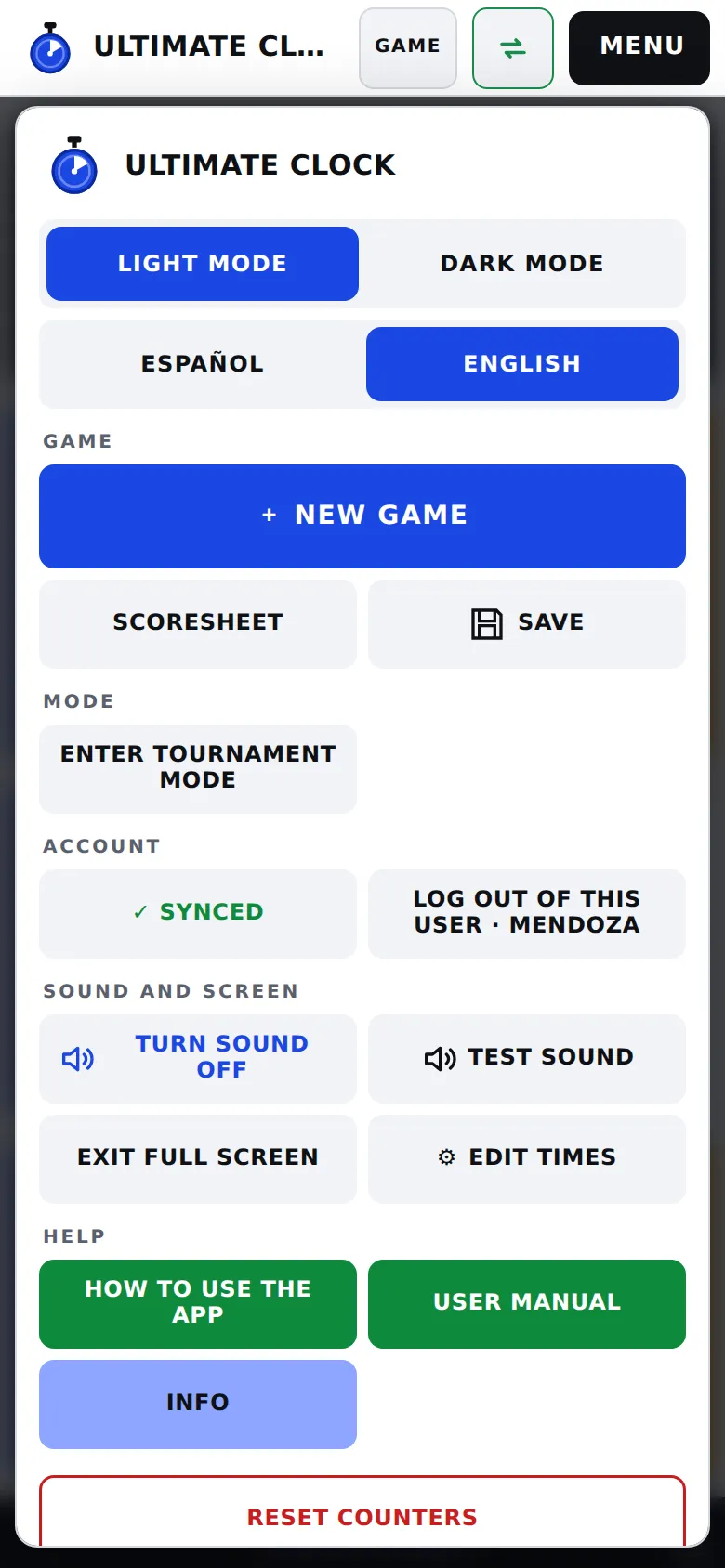
Everything one tap away: light mode for sun and dark for night, language, sound, full screen, timing editor and new match.
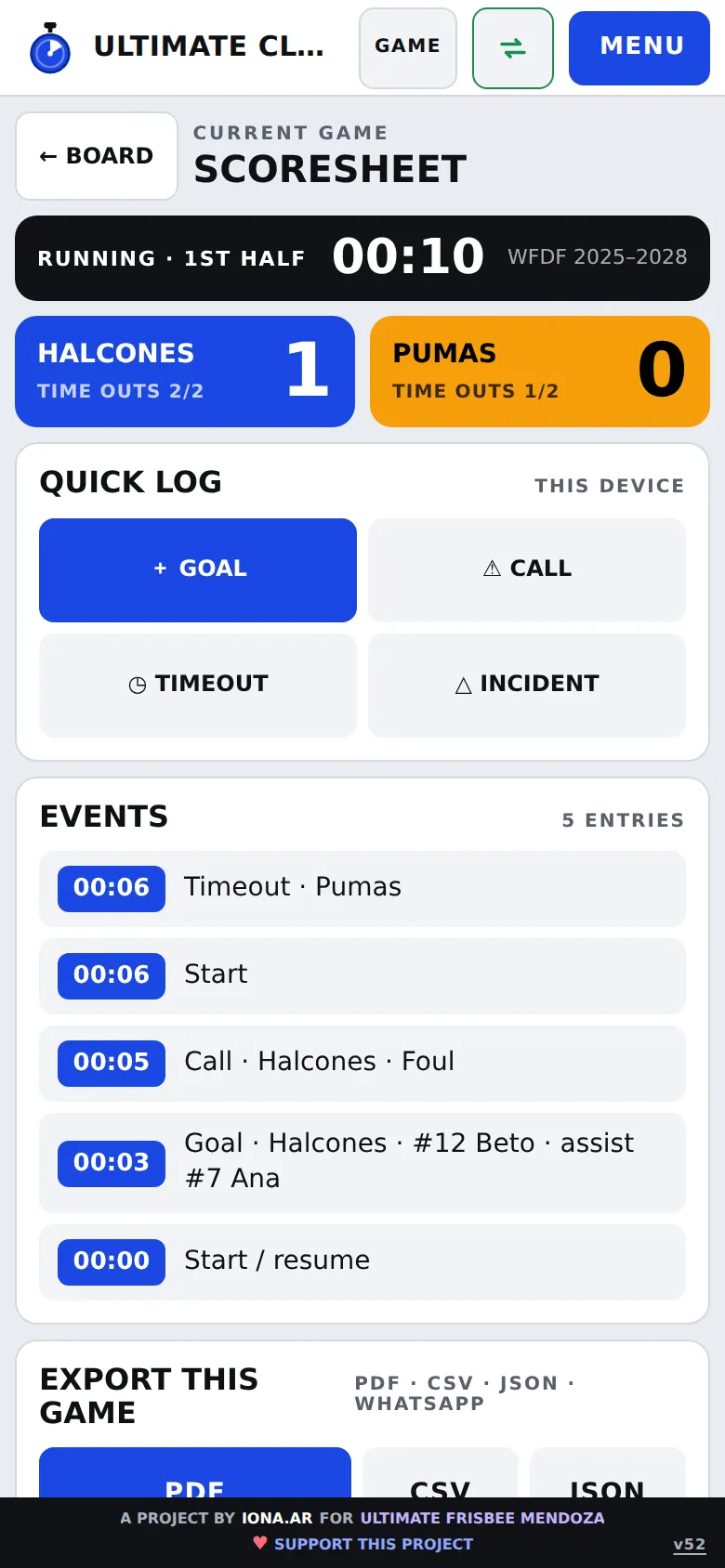
Menu → Scoresheet shows the score, remaining time outs and every event with its minute. You can also record goals, calls and incidents from there.
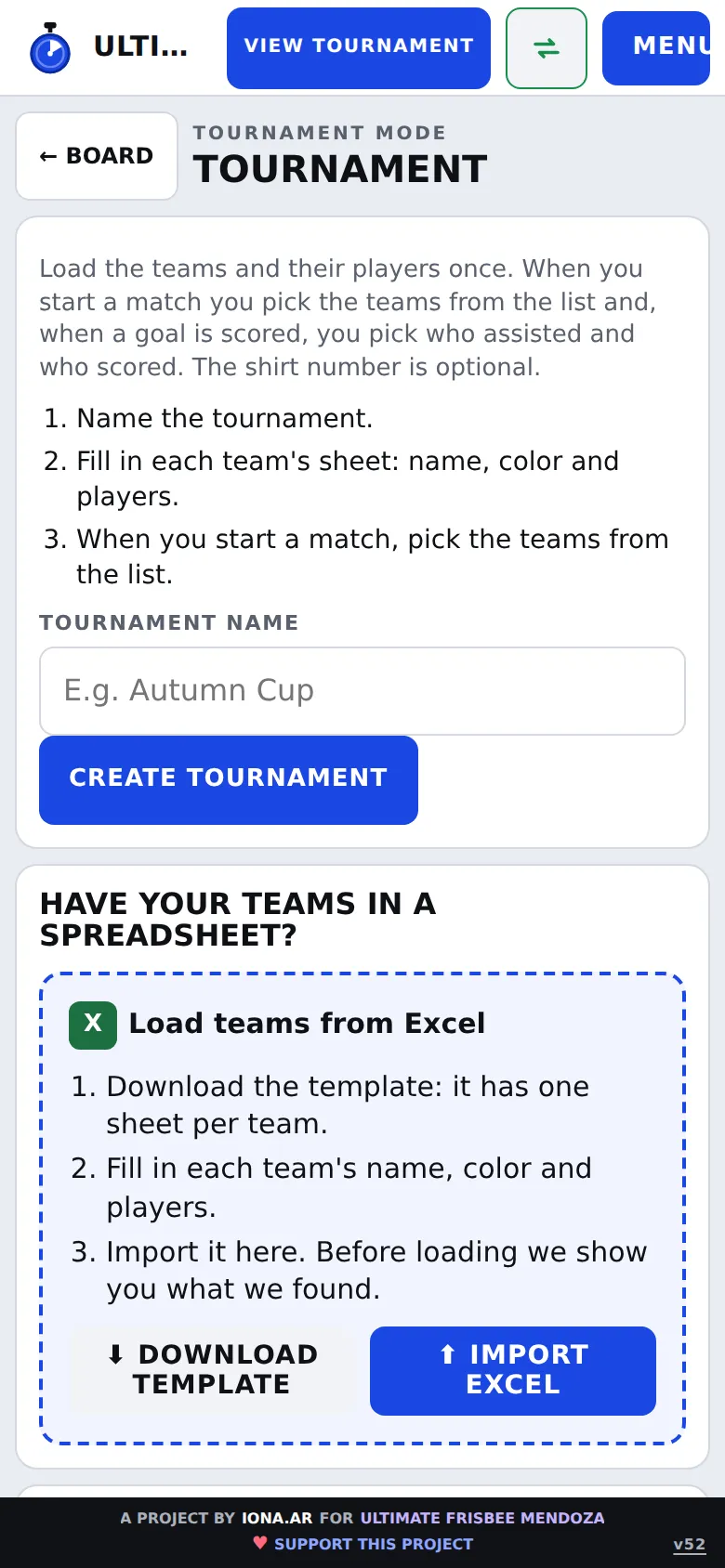
On the welcome screen pick Tournament Mode and sign in with your username. Type the name (for example "Mendoza Cup 2026") and tap Create tournament.
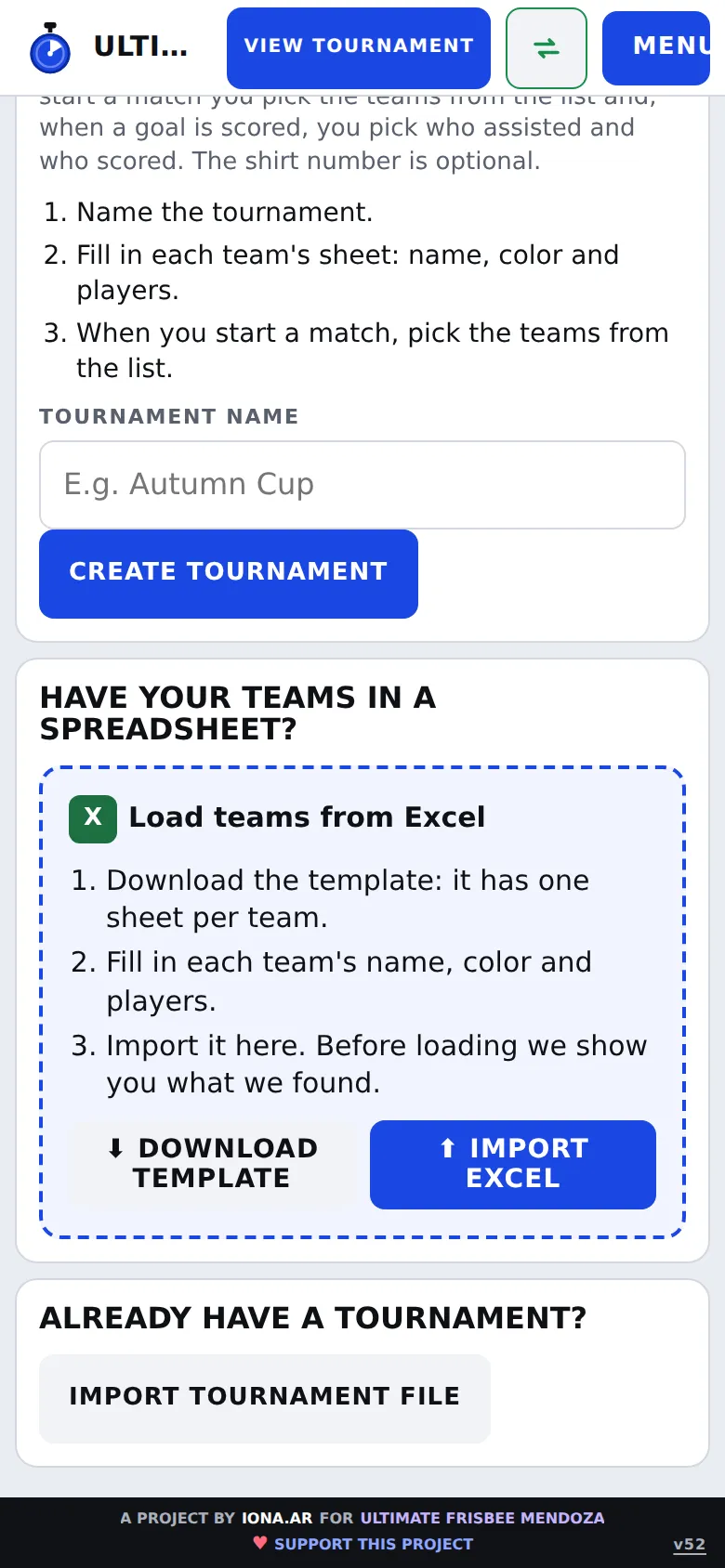
Download the template, fill it with teams and players, and save it as .xlsx. It works with Excel, Google Sheets, Numbers or LibreOffice.
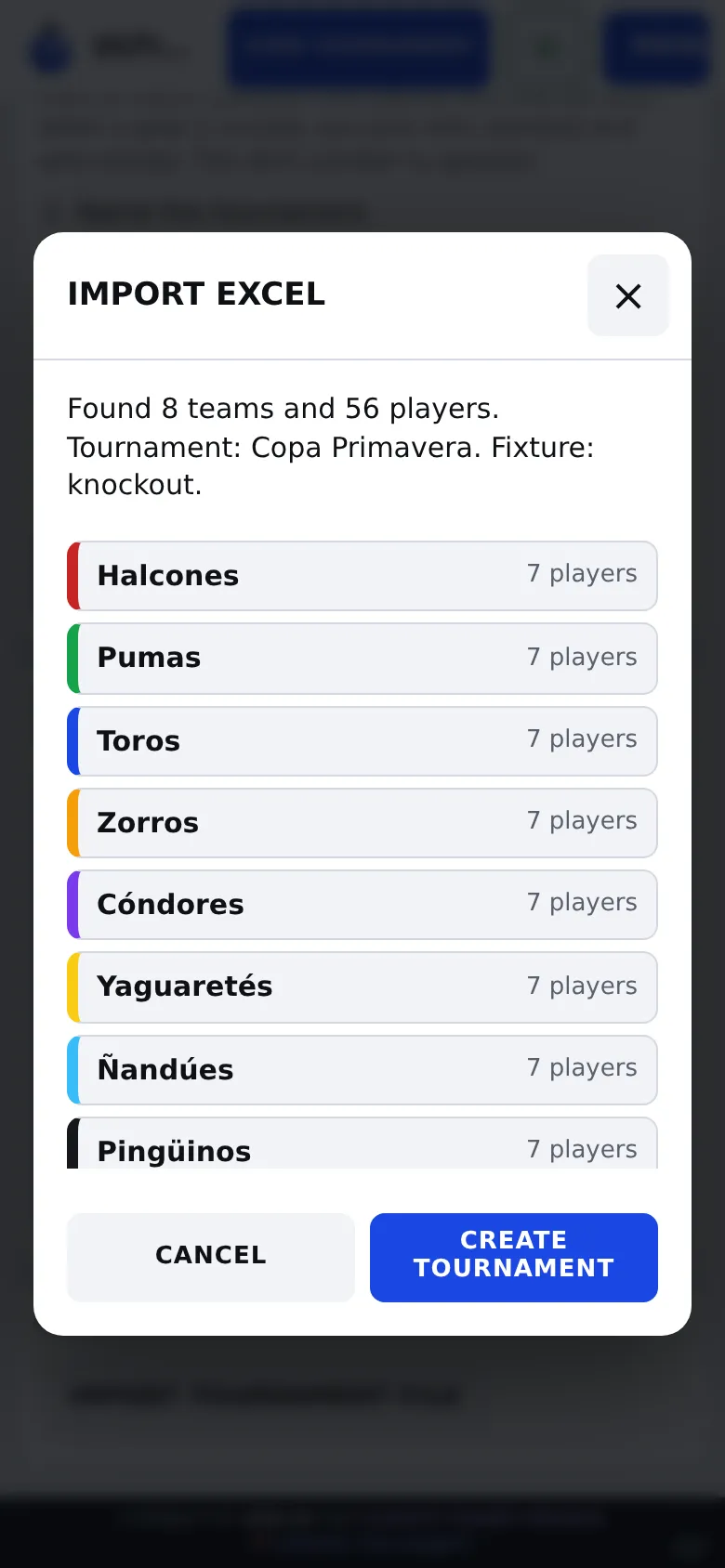
Before loading, the app shows what it found: teams, players, fixture name and type, with warnings if something does not add up.
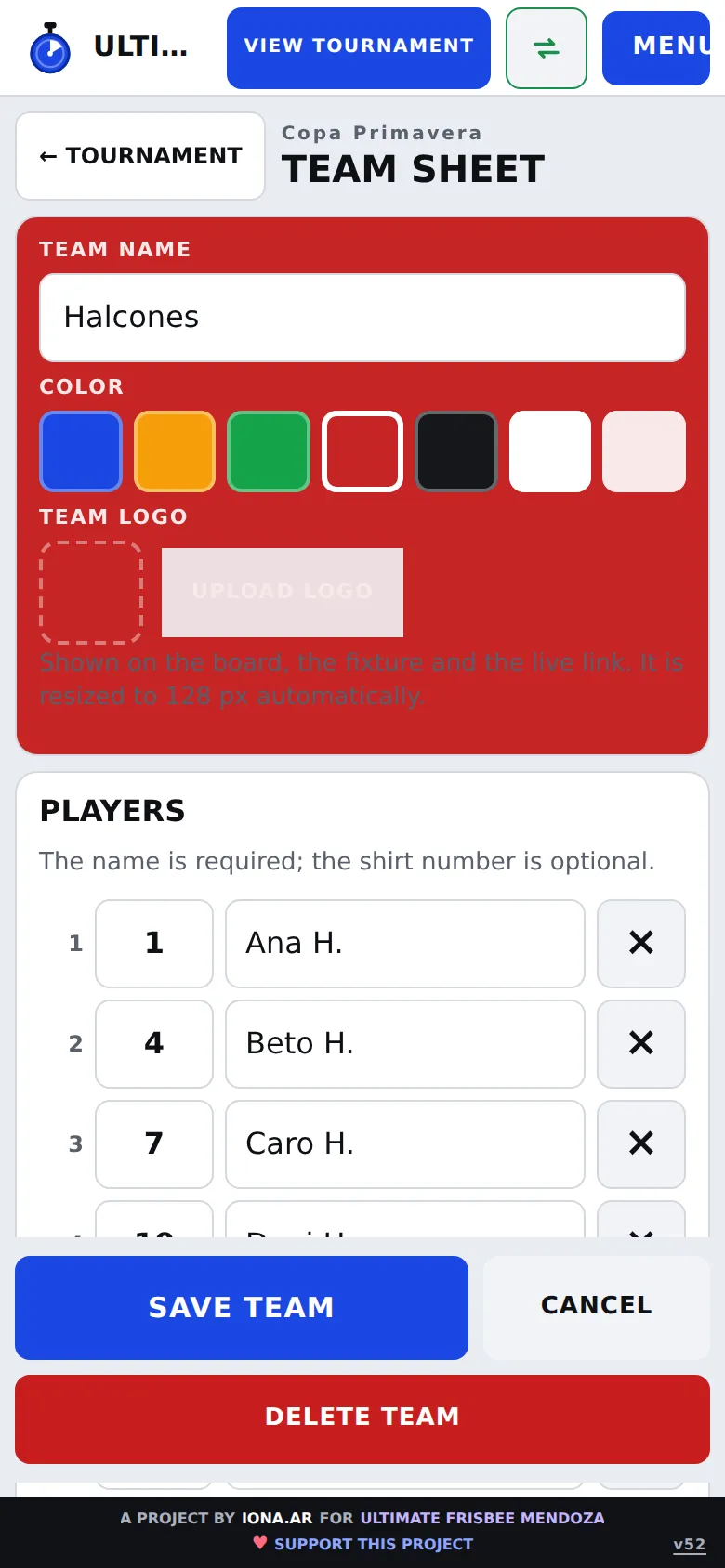
Tap a team to edit it: name, color, players with their number and the logo, which shows on the board, the fixture and the live link.
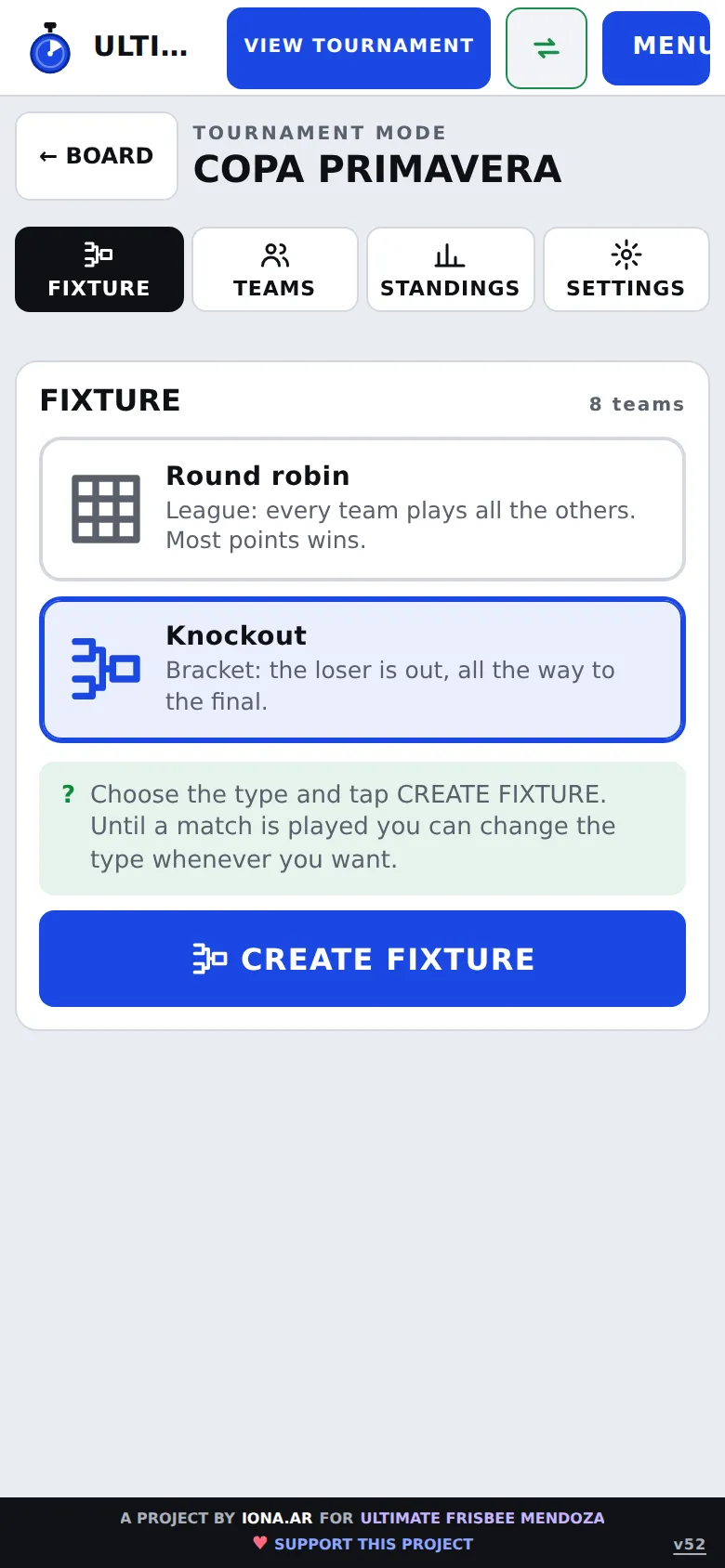
Two cards: Round robin (league) or Knockout (brackets). Tap Generate fixture.
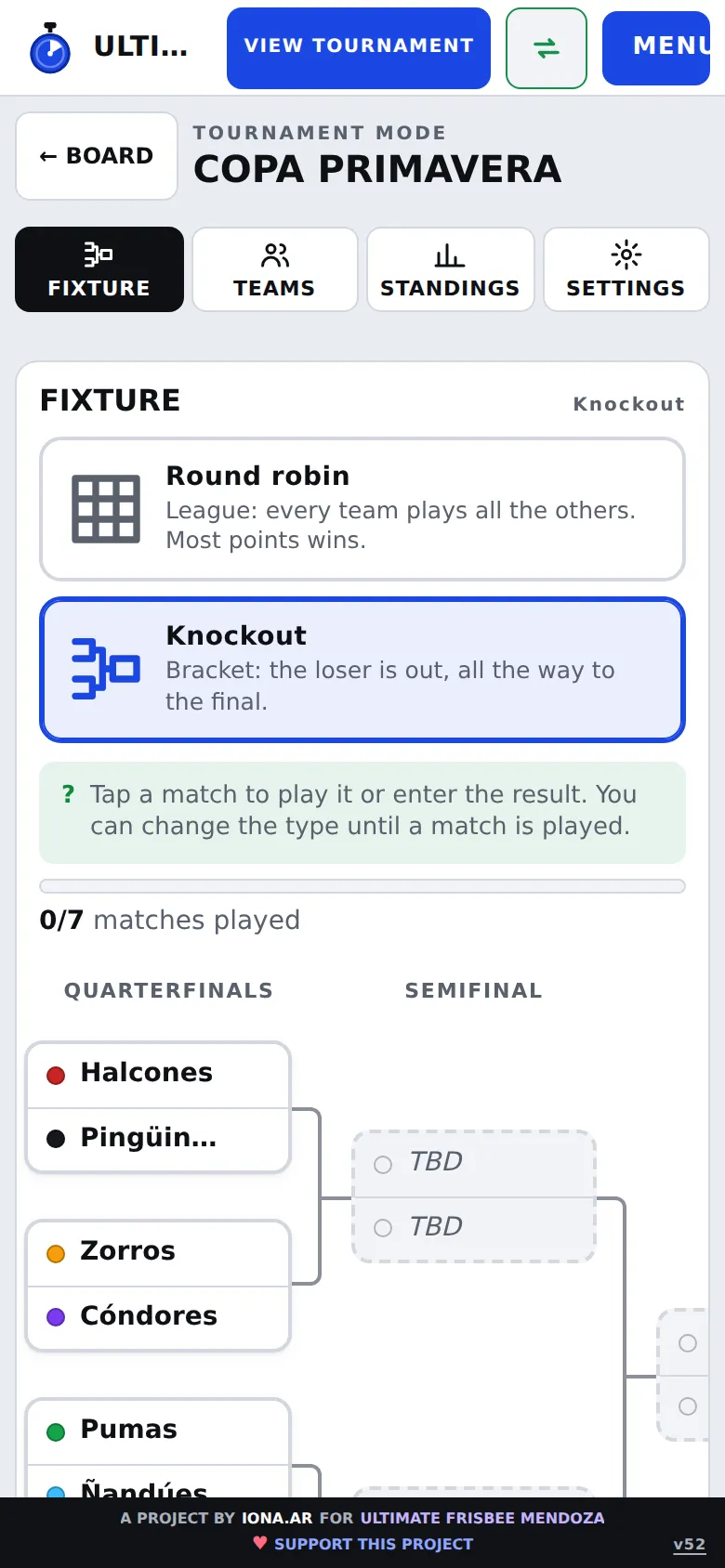
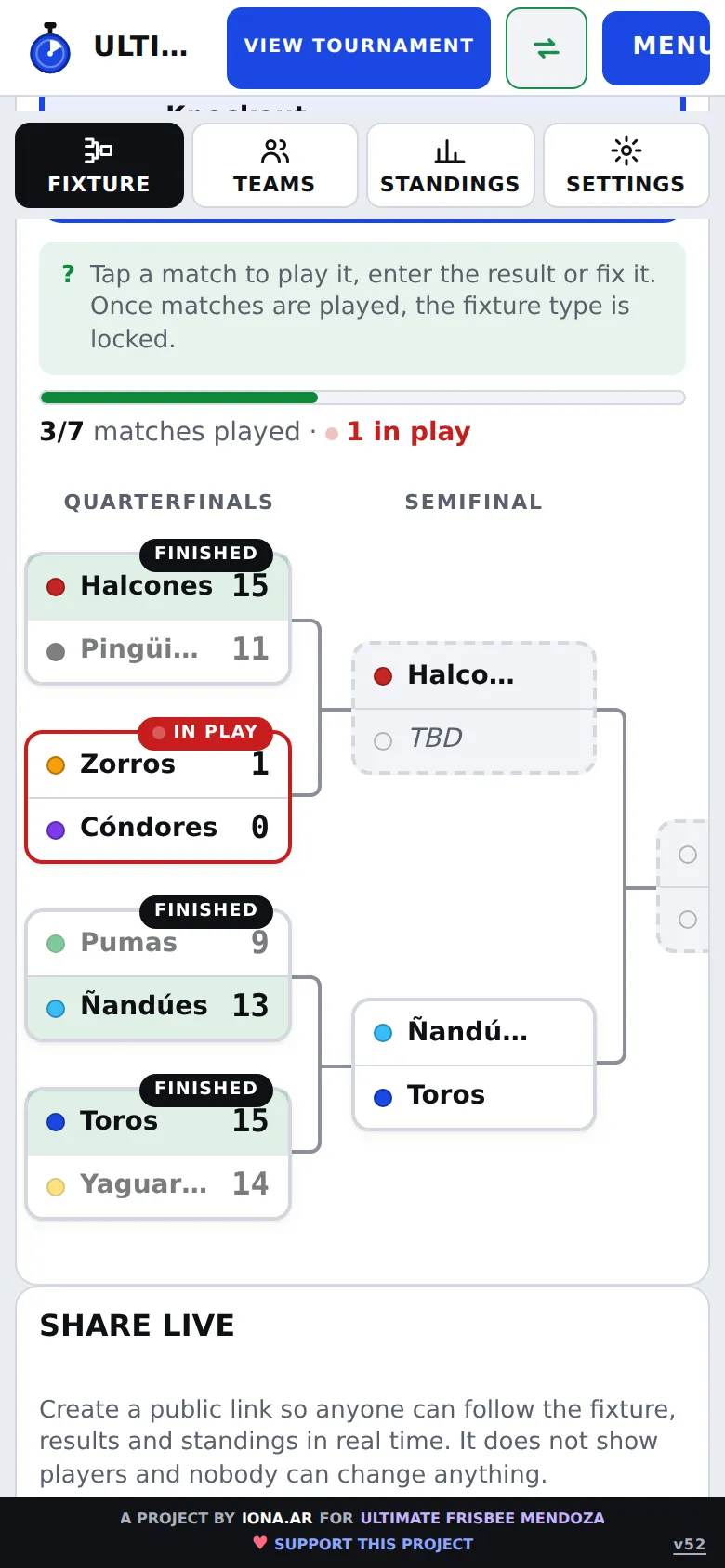
Each column is a phase and the lines show where each winner advances. The champion appears above the final.
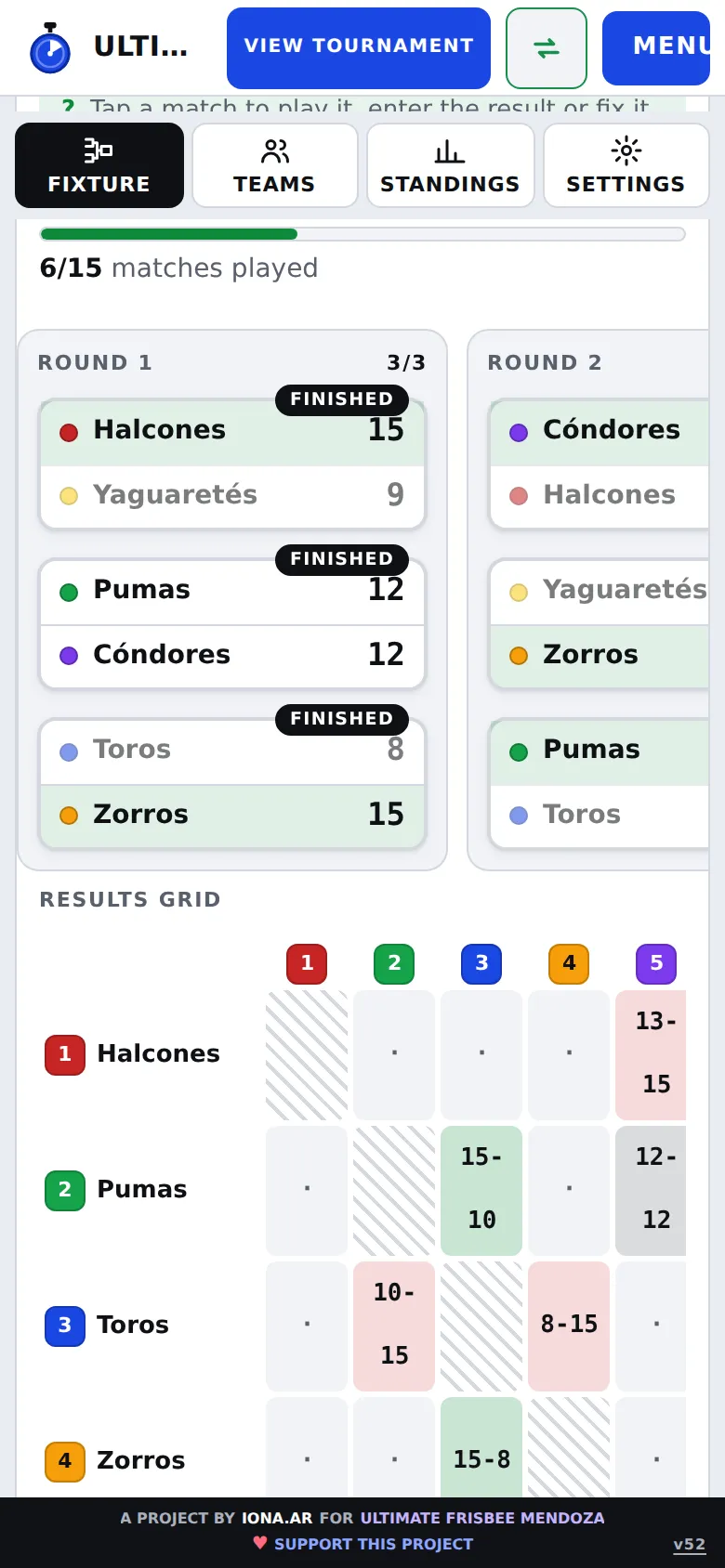
In a league, each column is a round with its matches. With an odd number of teams, one sits out each round.
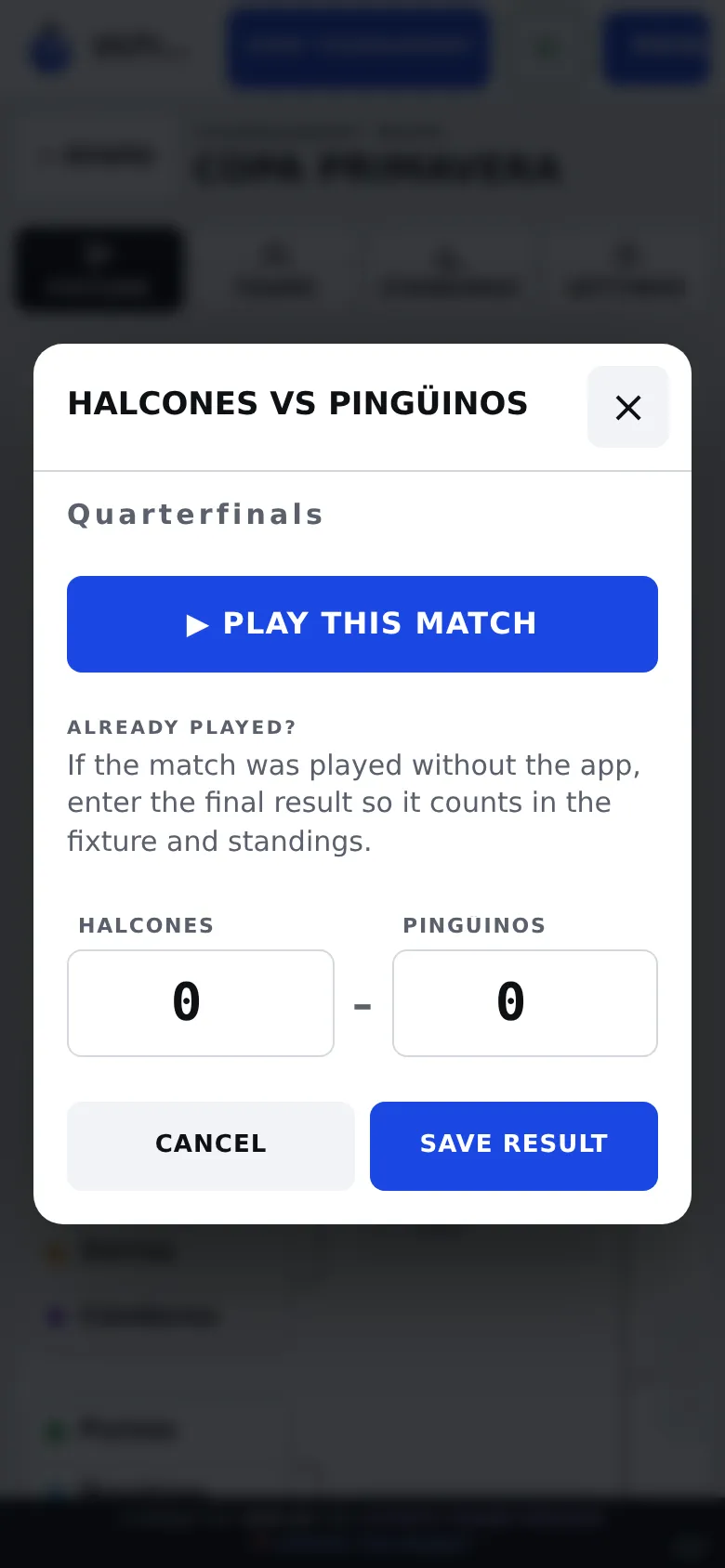
Tap any match in the fixture and choose Play this match: the board opens with both teams loaded and the match stays tied to that pairing.
On every goal you pick from the list who passed and who scored. That is how the tournament scorers and assists are built.
Tap the match, change the numbers and tap Save correction. The fixture, the advancing winner and the standings update by themselves.
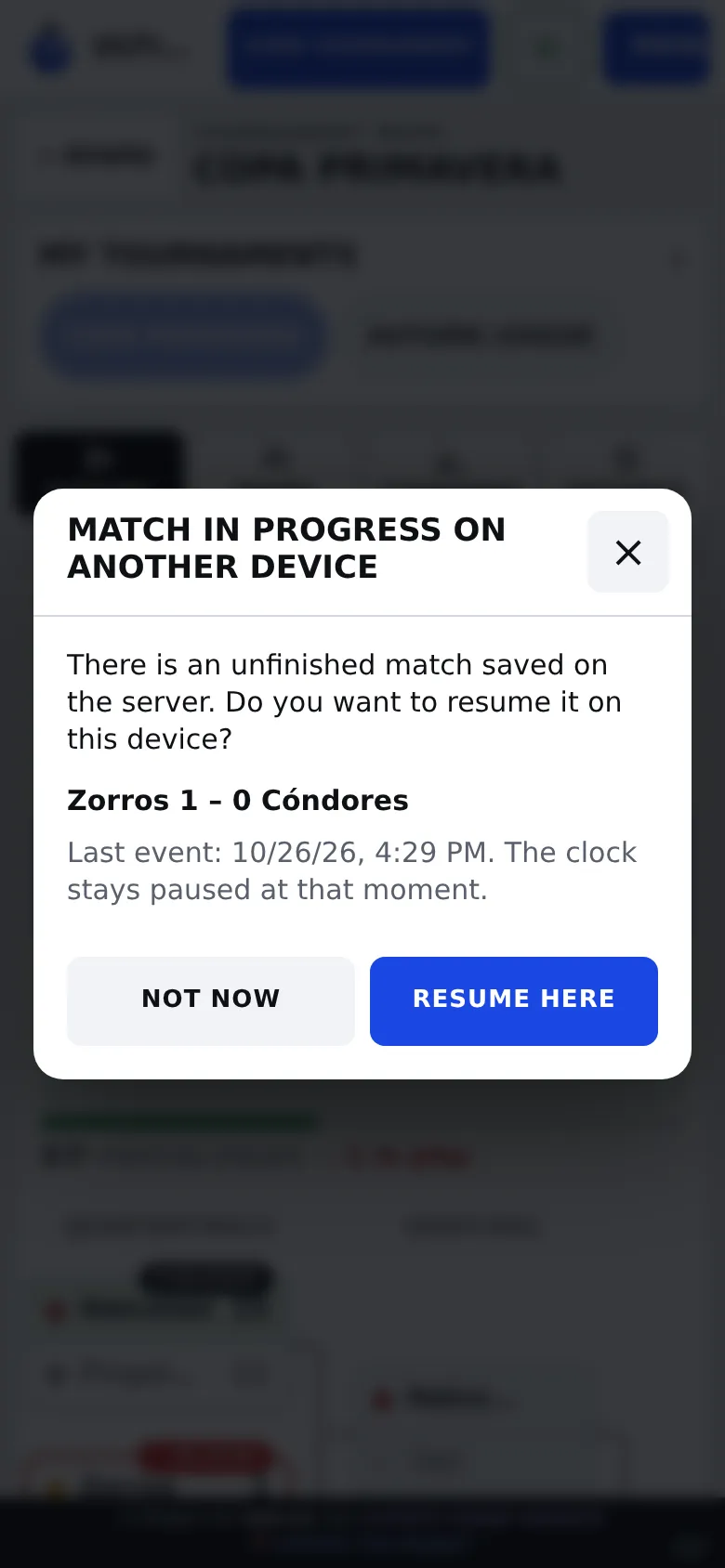
Sign in with the same user on each phone or tablet: each can run its own match and everyone sees the others' progress.
If two people record the same goal it counts twice: split the work.
Tap View tournament any time: the match being played shows as Live with the score right now, even if another phone runs it.
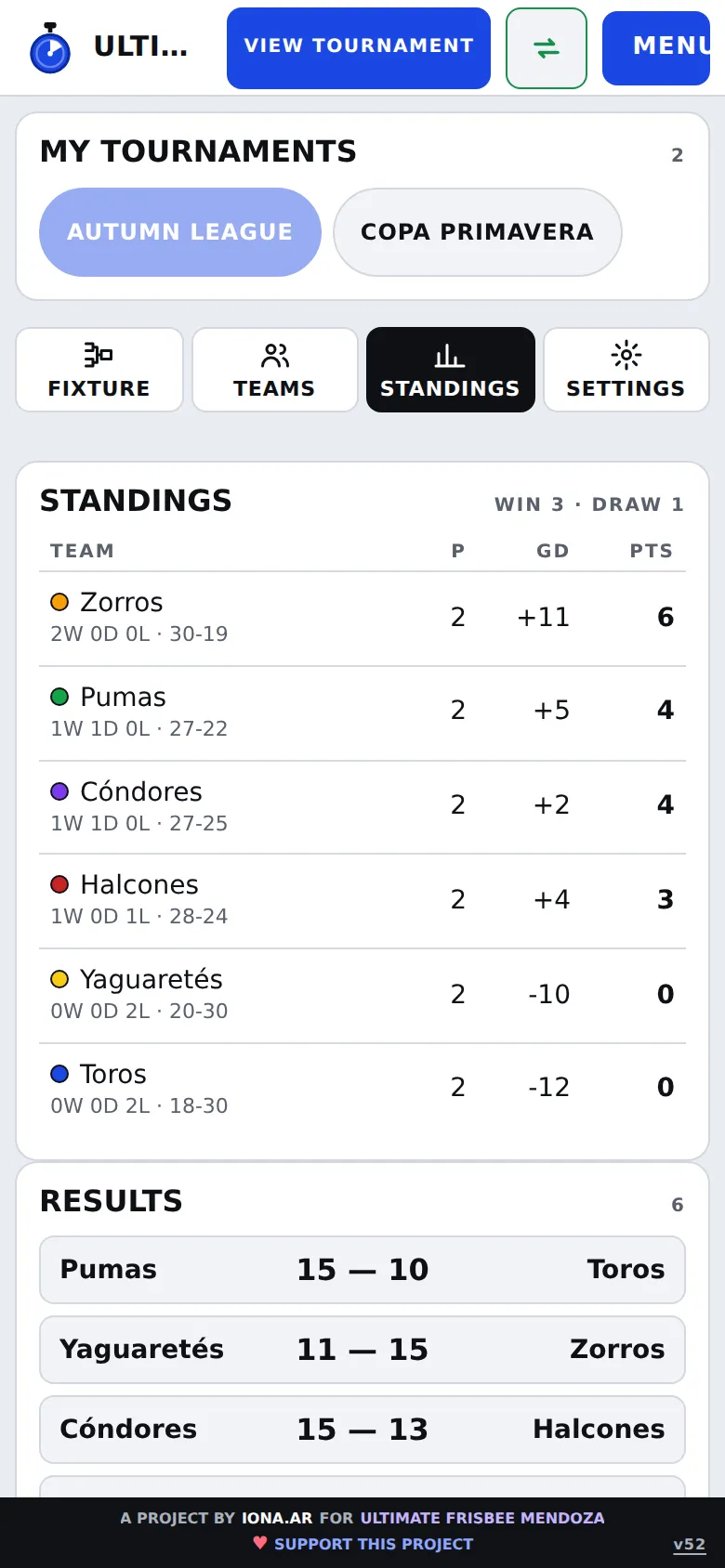
Standings with matches played, goal difference and points; results, scorers and assists.
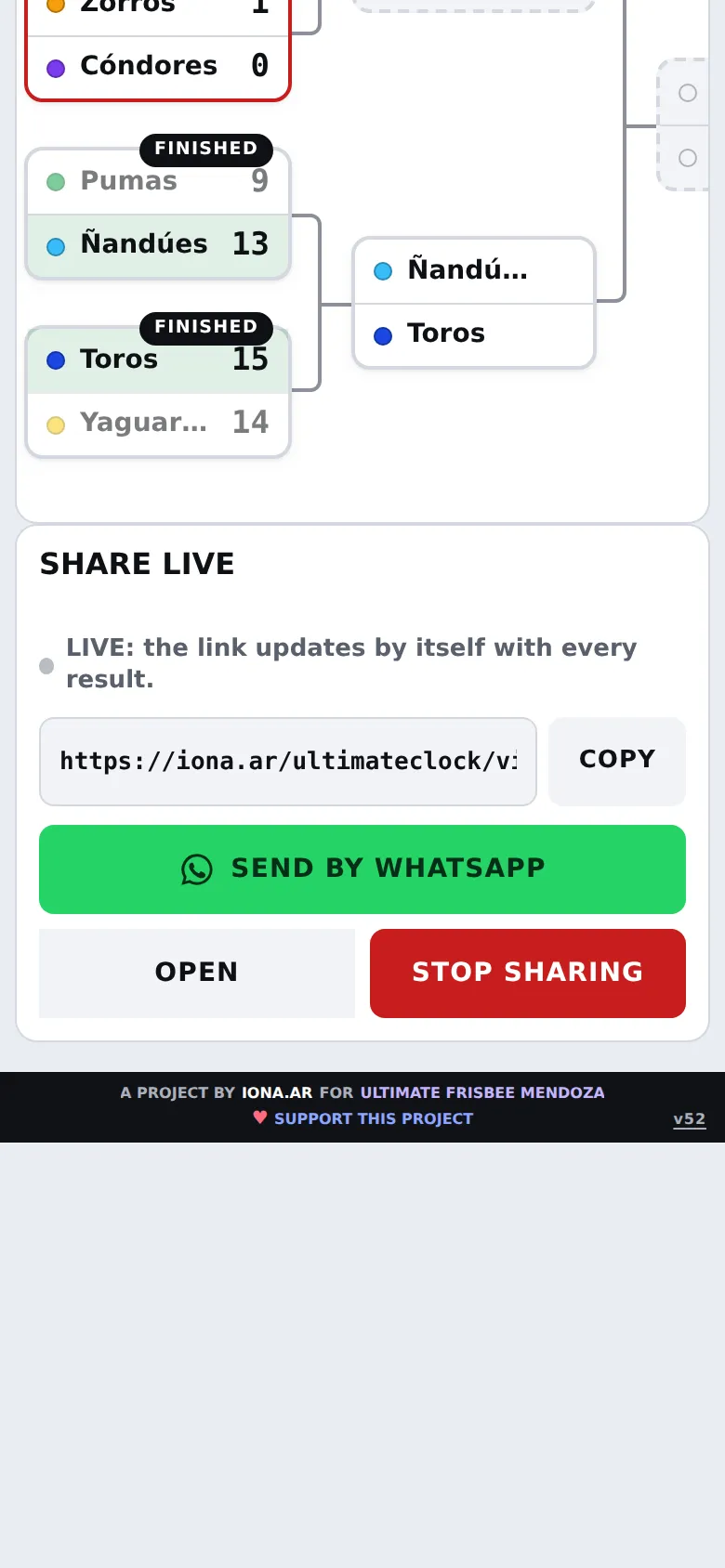
On Fixture, tap Share live fixture. Copy the link or send it by WhatsApp.
Scorer and assist names are published, not the full player list, and nobody can change anything.
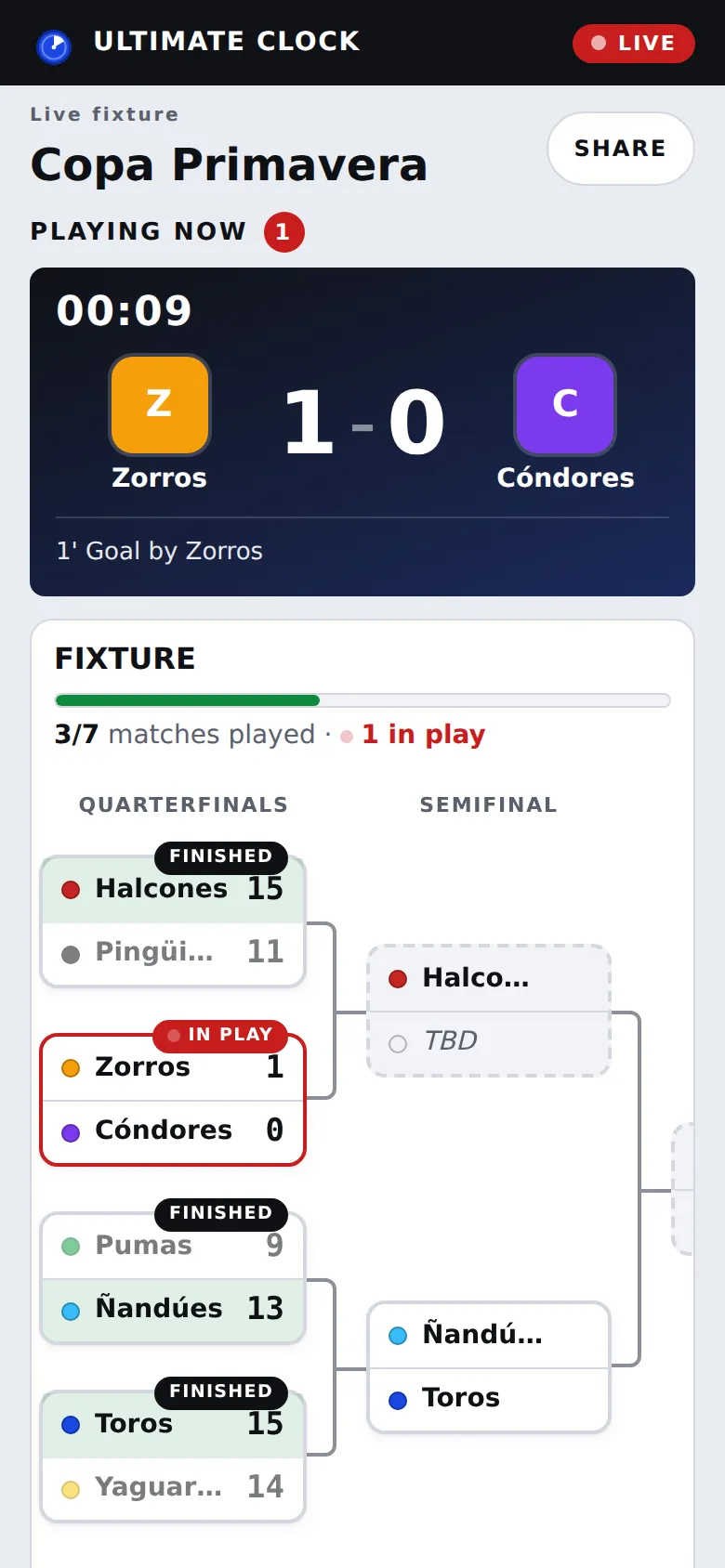
Score and clock of live matches, fixture with logos, standings and a feed telling goals, halftime, time outs and calls.
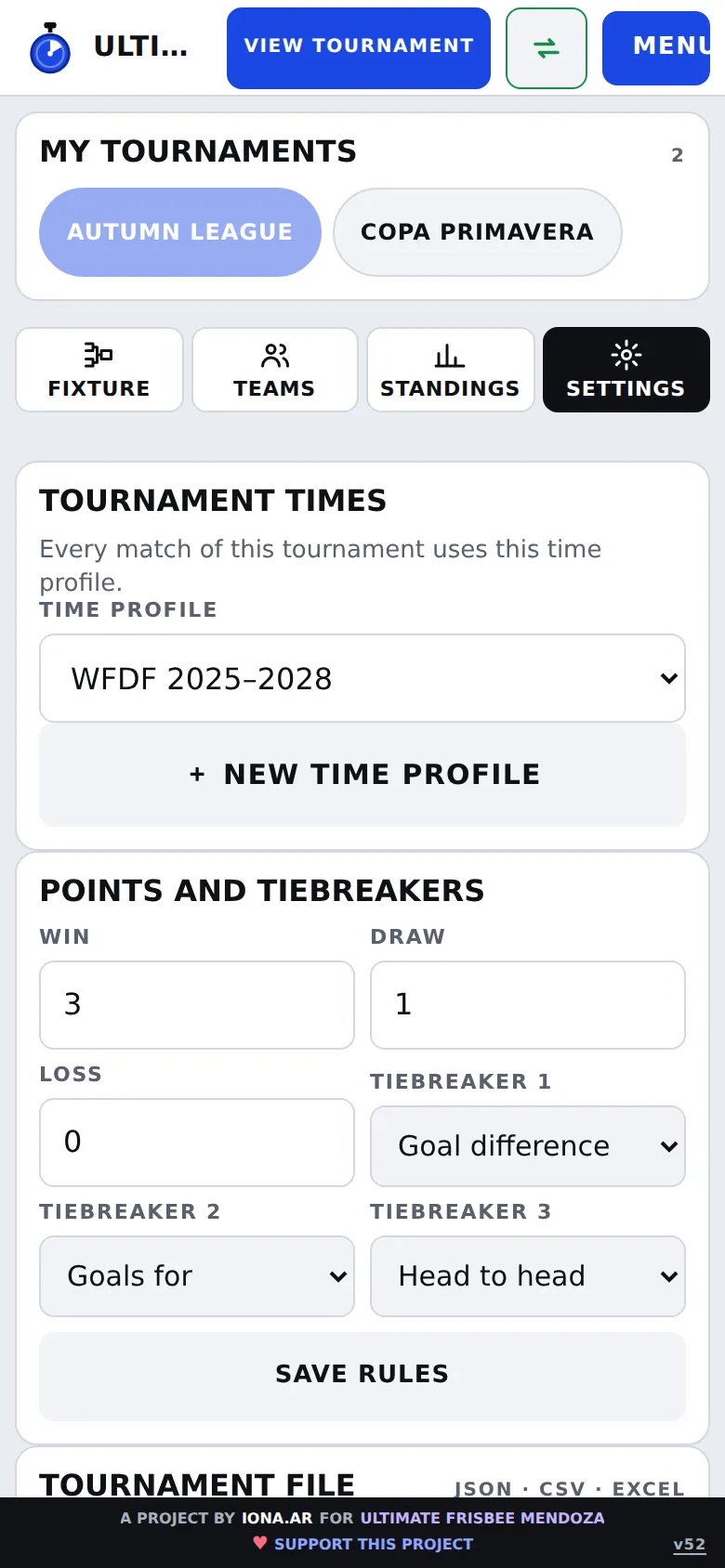
Tournament timing, points and tiebreakers, and the tournament file: export to JSON, CSV or Excel, and import on another phone.
The bracket and the live link are made for big screens: organizers, families and the public follow everything with nothing to install.
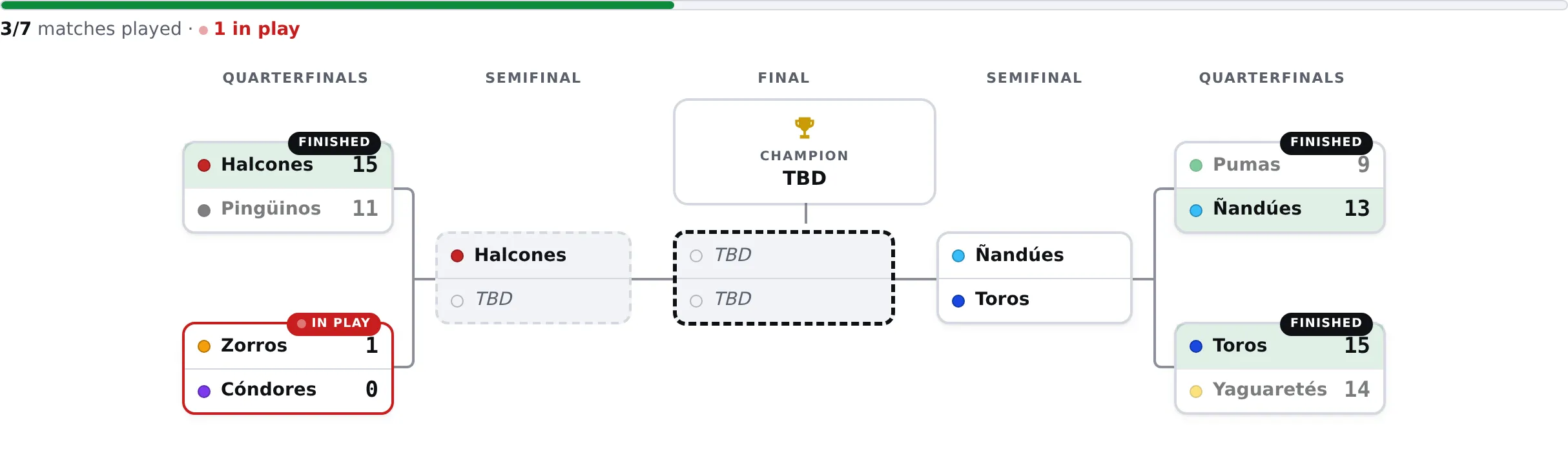
The whole bracket in one view.
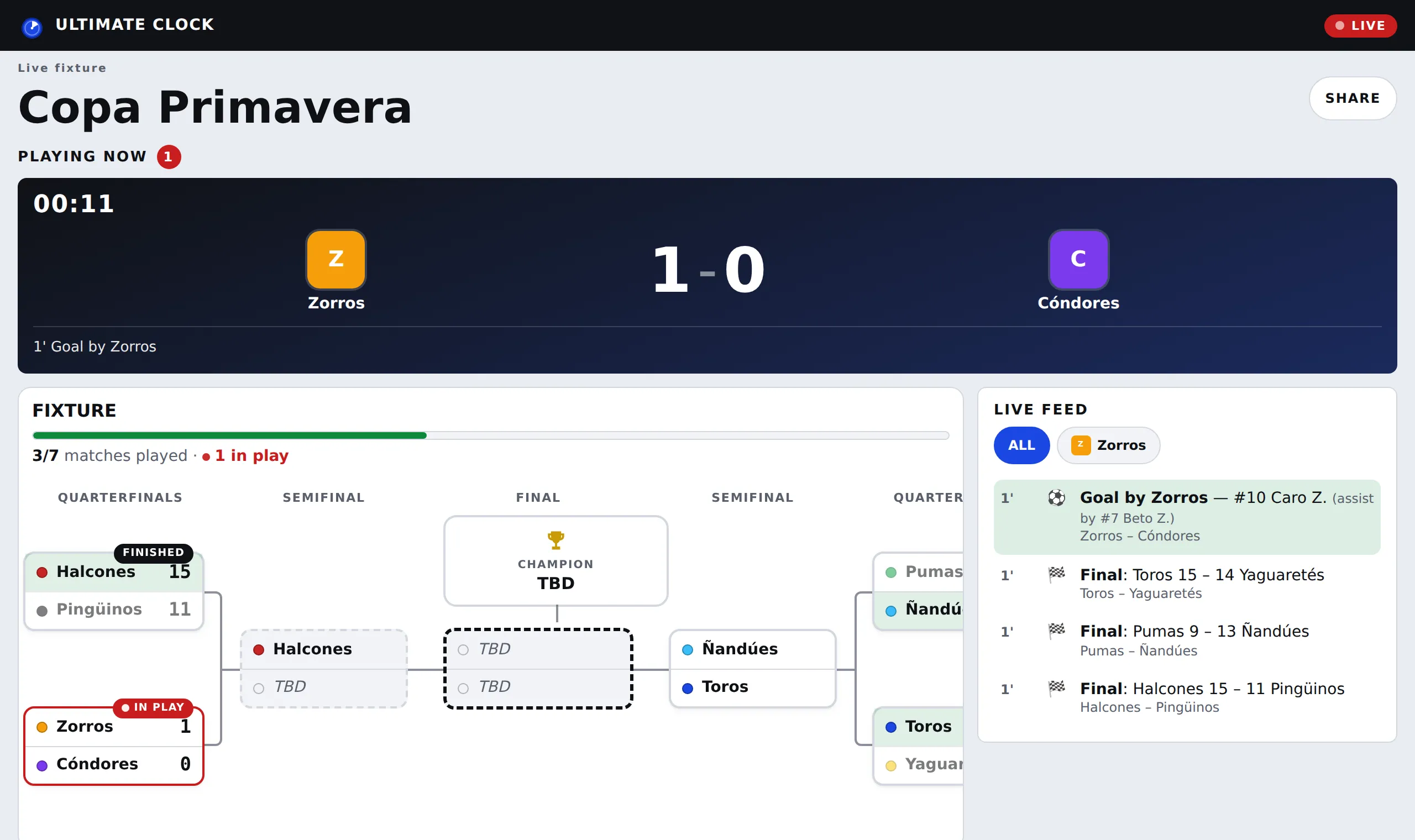
Score, play-by-play feed and scorers.
Start from an official rule set or build your own. Check the values with your tournament organizers.
Time out from the world federation rules, ready to use.
Time out from the 2026–2027 rules.
Total time, halves, pull, call and time-out allowance, your way.
The app records calls, but it does not apply penalties or settle disputes.
It is free. We turn it on by hand for each organization.
Request Tournament ModeName, team, tournament, a message and your e-mail.
It arrives by e-mail with a username and password.
In the app tap Tournament Mode and sign in with your username.
Install it as an app and, if something fails, look here.
In Safari tap Share, then Add to Home Screen.
In Chrome open the ⋮ menu and tap Install app.
Before the game raise the volume and tap Menu → Test sound. Keep the app open during the game: if you lock the phone, alerts sound when you come back.
Raise the volume, turn off silent mode and tap Menu → Enable sound and Test sound. On iPhone, the side silent switch also mutes the app.
There are changes to upload or there is no internet. The app keeps recording and uploads everything when the signal returns. If it reports a conflict, pick which device is the official one.
There are already played or live matches. If you need another format, create a new tournament with the same teams (you can use the Excel template).
Save it as .xlsx (not .xls, .csv or .numbers) and use the app template. On each team sheet fill in the name and the players under "Name and surname".
Sharing was stopped or the tournament was deleted. Tap Share live fixture again.
Without a user, data belongs to each phone and browser: import the exported file. With a user, check that you signed in with the same one.
The app is open twice. Close one and reload.
The throw that starts every point.
A pause a team asks for; each team has an allowance.
A player announcement about a foul, violation or other situation.
A pause to talk through a call between players.
Open it in the browser, test the sound and go. Nothing to install.